The material master is used to store
all the data for a material in SAP. This data is made available to other
transactions and modules such as inventory management, production planning,
shipping and quality management as and when required by SAP via the
inter-module integration. The material master stores information pertaining to
all the materials that are used by a company code, whether it is manufactured
in the company code or the company code simply deals in trading of that
material. The material master contains the following data sets:
- GENERAL DATA: The general data consists of the material name, material description, weight, etc. The general data contains general information about the material which is made available across the various models in SAP.
- PLANT DATA: The plant data includes information about the material related to the plant where it is available. It includes information about storage conditions, hazardous conditions, unit of issue, shelf life data, etc.
- SALES DATA: The sales data includes information which is required at the time of the sale of the material. It includes information like the costing of the material, valuation of the material, pricing of the material, stock availability, etc.
The total data for the material
master is stored in multiple tables. The general data pertaining to a material
is stored in the MARA table while the plant data is stored in the MARC table.
The sales data for the material is stored in the MVKE table. All these tables
are accessed for information about the vendor by the FI and the SD module.

FIGURE
1 (MATERIAL MASTER DATA TABLES)
The above mentioned data sets are
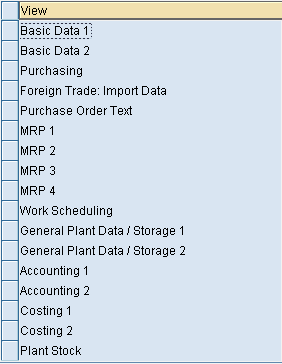
divided into various views or tabs in the material master in SAP. The various
views those are available in the SAP material master are shown in the
screenshot below. Each of these tabs contains certain specific data about the
material. A material can be identified by the material number of which must be
unique. The material will be assigned internally or externally depending on the
settings that are done in the implementation guide. When the material numbers
are assigned internally, then SAP generates the material numbers automatically
every time a new material master is created. In case of external assignment,
the material numbers need to be assigned by the user entering the material
master data.

FIGURE
2 (VIEWS IN THE MATERIAL MASTER)
CONCEPT
OF A MATERIAL GROUP / TYPE
A material group is used to group
together materials by some criteria. For e.g. a business may have different material
groups for raw material, semi-finished goods and finished goods. Material
groups help in valuation and reporting purposes. Material groups are extremely
important and must be decided upon at an early stage during the SAP
implementation.
CREATING
A MATERIAL MASTER IN SAP
STEP 1: Navigate to the SAP easy access menu path as shown in the
screenshot below or execute the transaction code MM01 to reach the new material
master definition screen.

FIGURE
3 (NAVIGATE TO THE SAP EASY ACCESS MENU)
STEP 2: Enter the details as shown in the screenshot below to create
the new material. The material number is being provided by the end user as the
system is configured to use external material number assignment.

FIGURE
4 (ENTER THE DETAILS FOR THE MATERIAL TO BE CREATED
)
STEP 3: Enter the information in the Basic Data 1 tab as shown in
the screenshot below. The Basic Data 1 tab is contains a description of the
material and the material group information. It also defines the base unit of
measure and information about the dimensions of the material. This information
is important for warehouse management in order to calculate the volume that
will be occupied by the material when it is stored in the warehouse.

FIGURE
5 (ENTER THE DATA ON THE BASIC DATA 1 TAB)
STEP 4: The purchasing
tab contains information about the plant where the material is produced. It
also contains information from the manufacturer which is required for storing
as well as transportation of the material. The units in which the material can
be ordered are also maintained in this tab as shown in the screenshot below.

FIGURE
6 (ENTER THE DATA ON THE PURCHASING TAB)
STEP 5: The purchase order text tab contains information about any
special text message that needs to be included whenever a purchase order is
created for the material. This text message is included in the purchase order
and is visible to all the business partners to whom the purchase order is sent.
FIGURE
6 (ENTER THE DATA ON THE PURCHASING TAB)

FIGURE
7 (ENTER THE DATA ON THE PURCHASE ORDER TEXT TAB)
STEP 6: The MRP tab contains information about the material resource
planning cycle for the material being created. Material resource planning is an
extremely important step in the logistics cycle of every business. The same
material may be produced at various plants within the same company code.
Material resource planning determines the plants from which the materials will
be available at a certain date. This helps in ensuring that the material is
available for consumption when it is required. Enter the data on the Material
Resource Planning 1 tab as shown in the screenshot below.

FIGURE
8 (ENTER THE MRP1 DATA FOR THE MATERIAL MASTER)
STEP 7: The accounting tab contains information regarding the
valuation of the material which is required for financial accounting purposes.
The standard price of the material and its moving price are defined in this
tab. The accounting tab also provides the valuation class of the material which
helps in valuation at the client, company code or plant level. Enter the data
in the accounting 1 tab as shown in the screenshot below.

FIGURE
9 (ENTER THE DATA ON THE ACCOUNTING 1 TAB)
STEP 8: Click on the save button to save the data for the material
master. A success message is displayed indicating that the data has been saved
successfully and the new material has been created. This material is now
available to be used while creating purchase orders, sales orders or at any
other place in the other SAP modules.

No comments:
Post a Comment